


How to Set Up a Private AI Assistant with Ollama and Open WebUI
Every business has conversations that shouldn't go to **OpenAI**'s servers. Client proposals. Legal documents. Financial models. Strategic plans. Employee performance reviews.
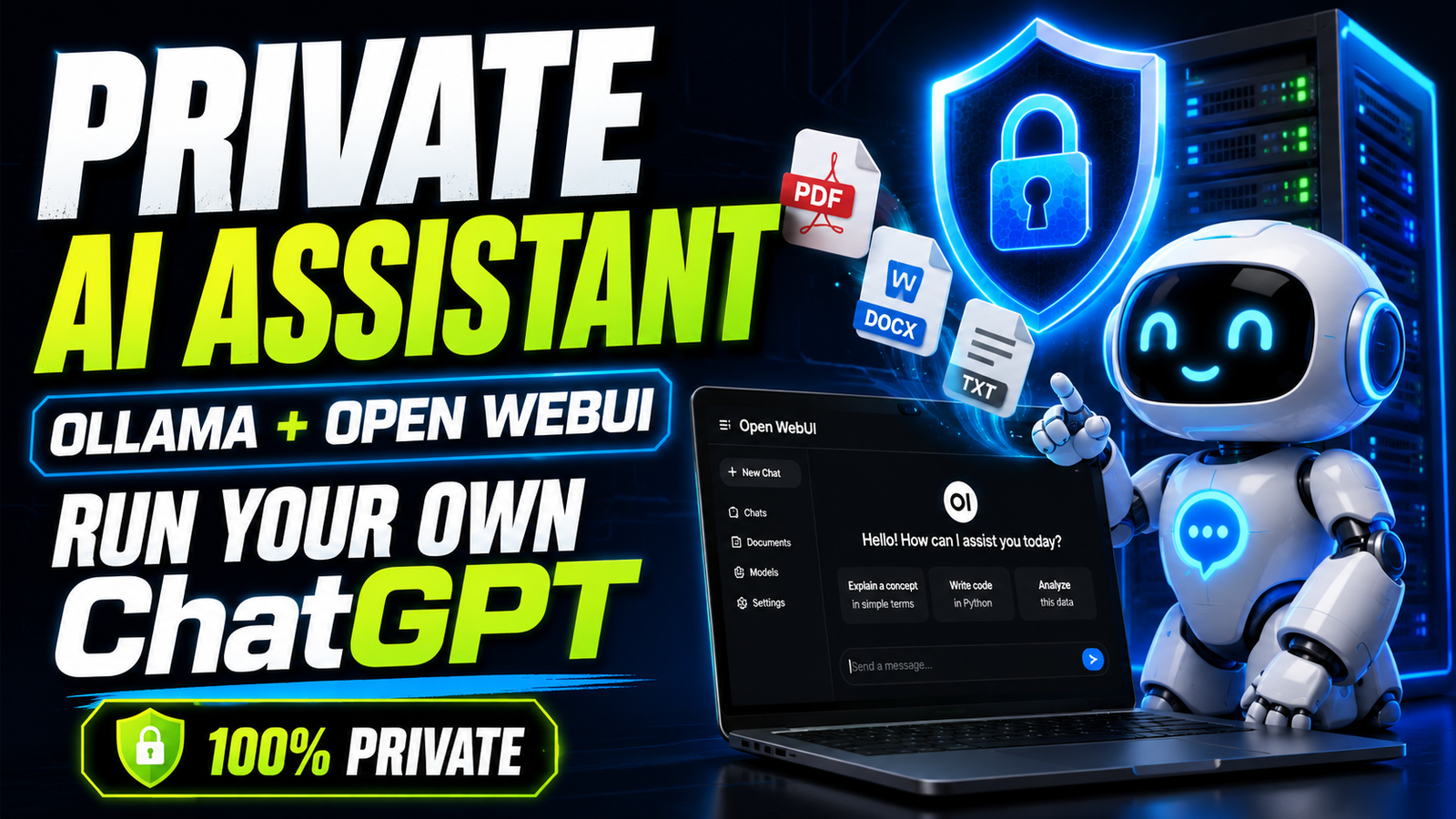
**Open WebUI** + **Ollama** gives you a full **ChatGPT**-equivalent interface — with document upload, conversation history, multiple models, and team access — running entirely on your own infrastructure. Nothing leaves your server.
This guide gets you from zero to a fully functional **private AI assistant** in under 2 hours.
What You'll Have at the End
- A web interface identical to **ChatGPT** in functionality
- Multiple LLM models to choose from (**Mistral**, **LLaMA 3**, **Gemma 2**, **Phi-3**)
- Document upload and analysis (PDFs, Word files, images)
- Full conversation history
- Multi-user access with role-based permissions
- Zero per-query cost after setup
- 100% private — nothing leaves your server
Hardware Requirements
For a team of 1–5 users:
- 32GB RAM, 8+ vCPU
- 50GB storage
- VPS: **Hetzner** CX52 (~₹2,350/month) or **DigitalOcean** 32GB ($192/month)
- Or: A powerful office desktop/server (**M2 Mac**, high-RAM Windows machine)
For a team of 5–20 users:
- GPU server recommended: **AWS** g4dn.xlarge in Mumbai (~₹1,300/day or reserved ~₹35,000/month)
- Responses will be 10–20x faster with GPU
For personal use:
- **MacBook Pro M1/M2/M3** with 16GB+ RAM works very well
- **Ollama** runs natively on **Apple Silicon** — fast, efficient
Step 1 — Install Ollama
# Linux / macOS
curl -fsSL https://ollama.ai/install.sh | sh

# Verify
ollama --version

# Windows: download installer from ollama.ai
Start **Ollama** (it runs as a background service automatically on Linux):
ollama serve # If not auto-started
Pull your models:
# General purpose — good balance of speed and quality
ollama pull mistral:7b-instruct-q4_K_M     # 4.1GB

# Better reasoning
ollama pull llama3:8b-instruct-q4_K_M      # 4.7GB

# Fast and light — good for quick tasks
ollama pull phi3:mini                       # 2.3GB

# Best quality at this size range
ollama pull gemma2:9b-instruct-q4_K_M      # 5.4GB

# For document embeddings (RAG feature)
ollama pull nomic-embed-text               # 274MB
Test that **Ollama** works:
ollama run mistral:7b-instruct-q4_K_M
# You'll get an interactive prompt
>>> Write a professional email declining a vendor proposal
Step 2 — Install Open WebUI with Docker
**Open WebUI** is the frontend — the **ChatGPT**-like interface that connects to **Ollama**.
# Install Docker if not already installed
curl -fsSL https://get.docker.com | sh
sudo usermod -aG docker $USER  # Add yourself to docker group
newgrp docker  # Apply without logout

# Run Open WebUI
docker run -d
  --name open-webui
  --restart always
  -p 3000:8080
  -v open-webui:/app/backend/data
  -e OLLAMA_BASE_URL=http://host.docker.internal:11434
  --add-host=host.docker.internal:host-gateway
  ghcr.io/open-webui/open-webui:main

# For GPU support (NVIDIA)
docker run -d
  --name open-webui
  --restart always
  --gpus all
  -p 3000:8080
  -v open-webui:/app/backend/data
  -e OLLAMA_BASE_URL=http://host.docker.internal:11434
  --add-host=host.docker.internal:host-gateway
  ghcr.io/open-webui/open-webui:cuda
**Open WebUI** is now running at http://localhost:3000 (or http://your-vps-ip:3000).
First time you open it: create an admin account. This first account gets full admin access.
Step 3 — Add SSL and Domain (For Team Access)
If your team needs to access it from outside your office/home network, add a domain and SSL:
# /etc/nginx/sites-available/ai-assistant
server {
    listen 443 ssl;
    server_name ai.yourdomain.com;

    ssl_certificate /etc/letsencrypt/live/ai.yourdomain.com/fullchain.pem;
    ssl_certificate_key /etc/letsencrypt/live/ai.yourdomain.com/privkey.pem;

    location / {
        proxy_pass http://localhost:3000;
        proxy_http_version 1.1;
        proxy_set_header Upgrade $http_upgrade;
        proxy_set_header Connection 'upgrade';
        proxy_set_header Host $host;
        proxy_cache_bypass $http_upgrade;

        # Required for streaming responses
        proxy_buffering off;
        proxy_read_timeout 300s;
    }
}
Get SSL certificate:
sudo apt install certbot python3-certbot-nginx
sudo certbot --nginx -d ai.yourdomain.com
Your **private AI assistant** is now accessible at https://ai.yourdomain.com with SSL.
Step 4 — Configure Open WebUI for Your Team
User Management
In **Open WebUI**'s admin panel:
- Admin Panel → Users: Invite team members (they register with email)
- Role settings: Admins can add models, manage users. Regular users can chat.
- Default model: Set your preferred default model for new users
System Prompts (Make It Know Your Business)
Create a default system prompt that makes every conversation context-aware:
You are an AI assistant for Monk Media One Tech, an AI automation agency in Ahmedabad, India.

About our business:
- We build AI agents, N8N workflows, RAG chatbots, and custom software
- 450+ clients, 8+ years in operation
- Services: AI automation, AI calling agents, WhatsApp bots, SEO, paid marketing
- Team of 15 people
- Primary markets: India (Ahmedabad, Gujarat) and Ontario, Canada

When relevant, use this context to give more appropriate responses.
Keep responses concise. For technical questions, show code where helpful.
Go to Admin Panel → Settings → Default System Prompt and paste this.
Document Upload and Analysis
**Open WebUI** supports uploading PDFs, Word documents, images, and more. The model can then answer questions about the uploaded document.
For business use:
- Upload a contract → "Flag any unusual clauses or missing standard protections"
- Upload a client brief → "Summarize the key requirements and suggest a project timeline"
- Upload a financial report → "What are the 3 biggest concerns in this P&L?"
Enable the RAG feature (Settings → Documents) to use nomic-embed-text for indexing uploaded documents.
Step 5 — Connect OpenAI as Backup (Optional)
You can add **OpenAI** as a fallback for tasks that need **GPT-4o** quality:
Admin Panel → Connections → Add **OpenAI** API:
- Base URL:
https://api.openai.com/v1 - API Key: Your **OpenAI** key
Now your team can choose: local **Mistral** (free, private) or **GPT-4o** (paid, more powerful). You control the balance.
What Our Team Uses This For
At **Monk Media One Tech**, our private **Open WebUI** instance handles:
Proposals and client deliverables: Draft first versions privately. Client details stay on our server.
Code review and debugging: Paste sensitive client code without it going to **OpenAI**.
Contract review: Upload NDAs and service agreements for quick clause review.
Internal knowledge base queries: We've added our SOPs, client onboarding documents, and service templates to the document library.
Meeting summarization: Paste meeting transcripts for structured summaries and action item extraction.
Monthly **OpenAI** API costs since deploying the private instance: down 70%.
Troubleshooting Common Issues
"Cannot connect to Ollama": Check that **Ollama** is running (ollama ps) and that the Docker network can reach the host (host.docker.internal should resolve).
Slow responses (>30 seconds): You're likely running on CPU with insufficient RAM. Check htop during inference — if RAM is near 100%, you need more RAM or a smaller model.
Model not appearing in UI: After pulling a new model with ollama pull, refresh the **Open WebUI** page. Models appear automatically.
Team members can't register: Enable user registration in Admin Panel → Settings → General → Allow New Sign Ups.
Cost Summary
| Setup | Monthly Cost | Notes |
|---|---|---|
| Personal (local Mac M2) | ₹0 | Only electricity cost |
| Small team (Hetzner CX52) | ~₹2,350 | 32GB RAM, Germany |
| Small team (**DigitalOcean** Bangalore) | ~₹16,000 | 32GB RAM, India region |
| Production (GPU, **AWS** Mumbai) | ~₹35,000 | Fast inference, India data |
For most Indian businesses, **Hetzner** CX52 at ₹2,350/month is the sweet spot. The Germany latency is acceptable for internal tools. If you're processing sensitive Indian customer data, use **AWS** Mumbai.
We're **Monk Media One Tech** — AI automation agency, Ahmedabad. We set up private AI deployments for businesses that need data privacy, high volume, or compliance.
Book a free discovery call: monkmediaone.tech/contact 📞 +91 88668 19349 | hello@monkmediaone.tech